

What Is an Urdu Keyboard?
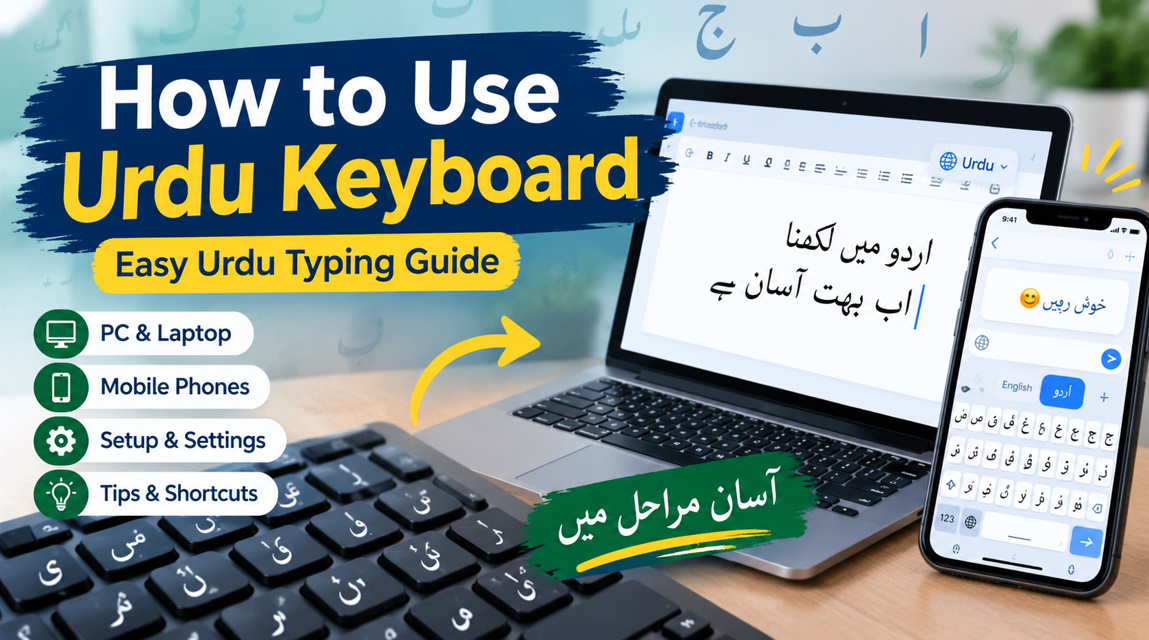
An Urdu keyboard is a typing tool designed to help users write the Urdu language digitally. It provides access to Urdu alphabets, symbols, punctuation marks, and other characters needed for accurate Urdu writing. You can use an Urdu keyboard on smartphones, tablets, Windows computers, laptops, and other compatible devices.
Urdu keyboards are available in different layouts, including traditional and phonetic options. A phonetic Urdu keyboard is often easier for beginners because it connects Urdu sounds with familiar English keyboard keys. Learning the correct layout can make Urdu typing faster, more accurate, and more comfortable over time.
- Types Urdu characters
- Supports Urdu alphabet
- Works on smartphones
- Works on computers
- Supports phonetic typing
- Provides Urdu symbols
- Enables bilingual typing
- Helps digital Urdu writing
How to Enable Urdu Keyboard on Android
Android devices generally allow you to add Urdu through the keyboard’s language settings. Open your keyboard settings and locate the language section. Select Urdu from the available languages and choose your preferred layout. After adding Urdu, you can use it whenever you open a messaging app, browser, document, or search box.
To change between English and Urdu, use the language-switching button on your keyboard. Depending on your keyboard application and Android version, the button may appear as a globe icon or language abbreviation. You can also customize Urdu autocorrect, suggestions, themes, and other keyboard preferences.
- Open keyboard settings
- Select Languages
- Add Urdu
- Choose Urdu layout
- Open a text field
- Tap language switcher
- Select Urdu
- Start typing
How to Use Urdu Keyboard on iPhone
iPhone users can easily add an Urdu phonetic keyboard through the device’s keyboard settings. Open Settings, select General, and then choose Keyboard. From the available options, add a new keyboard and select Urdu. Once installed, the Urdu keyboard becomes available in supported apps where text can be entered.
When writing a message or document, tap the globe or language button to switch between English and Urdu. This makes bilingual communication simple, particularly when you need to combine Urdu sentences with English names, technical terms, numbers, or other information.
- Open iPhone Settings
- Select General
- Open Keyboard
- Tap Add New Keyboard
- Select Urdu
- Open a text field
- Tap language switcher
- Begin typing Urdu
How to Use Urdu Keyboard on Windows PC
Windows computers support Urdu input through their language and keyboard settings. To begin, open Windows Settings and find the language options. Add Urdu as an input language and select an available Urdu keyboard layout. Once configured, you can switch between English and Urdu while using Word processors, browsers, email, and other applications.
Windows keyboard shortcuts can make language switching more convenient. The exact shortcut may depend on your Windows configuration. After selecting Urdu, your physical keyboard will produce Urdu characters according to the selected layout. Beginners should practice common Urdu letters before moving to longer sentences and paragraphs.
- Open Windows Settings
- Select language settings
- Add Urdu language
- Choose keyboard layout
- Select Urdu input
- Switch from English
- Open a text editor
- Practice Urdu typing
Urdu Phonetic Keyboard vs Traditional Keyboard
An Urdu phonetic keyboard is designed around pronunciation. Users type using familiar English keyboard keys that correspond to Urdu sounds. This approach can be particularly convenient for beginners who know how Urdu words sound but have not memorized the positions of Urdu characters on a traditional keyboard layout.
A traditional Urdu keyboard uses a dedicated arrangement of Urdu characters. Professional typists and experienced Urdu writers may prefer this layout because it provides direct access to letters and symbols. Neither method is universally required; your choice can depend on typing experience, purpose, speed, and personal preference.
- Phonetic typing uses sounds
- Traditional typing uses fixed positions
- Phonetic layouts suit beginners
- Traditional layouts require practice
- Both support Urdu script
- Layouts can differ
- Practice improves familiarity
- Choose a comfortable method
How to Improve Urdu Typing Speed
Improving Urdu typing speed requires regular practice and familiarity with the keyboard layout. Begin by typing frequently used Urdu letters and short words. Once you become comfortable, practice complete sentences and paragraphs. Focus on accuracy first because fast typing with frequent mistakes can slow down your overall writing process.
Another useful strategy is to learn common Urdu vocabulary and keyboard combinations. Avoid looking for every character individually as you type. With repeated practice, your fingers can become familiar with frequently used keys. Urdu typing exercises, online practice tools, and everyday messaging can gradually improve both speed and confidence.
- Practice regularly
- Start with common letters
- Type short words
- Practice complete sentences
- Focus on accuracy
- Learn frequent combinations
- Reduce keyboard searching
- Gradually increase speed
Common Urdu Keyboard Problems and Solutions
New users may experience problems such as incorrect Urdu characters, unexpected language switching, missing symbols, or text appearing incorrectly. These issues can be caused by an incorrect keyboard layout, language configuration, unsupported software, or an application that does not properly handle Urdu script and right-to-left text.
If your Urdu keyboard is not working correctly, first check that Urdu has been added and selected as the active input language. You can also restart the application, update the keyboard, or test Urdu typing in another program. For documents, use fonts and software that properly support Urdu Unicode characters.
- Check Urdu language settings
- Confirm the selected layout
- Restart the application
- Update keyboard software
- Check Unicode support
- Use Urdu-compatible fonts
- Check right-to-left formatting
- Test another application
Tips for Better Urdu Keyboard Typing
For a smoother Urdu typing experience, select a keyboard layout that matches your skill level and writing needs. Beginners may find phonetic typing easier, while experienced typists may prefer a traditional layout. Keep Urdu and English language switching easily accessible so you can communicate naturally in both languages.
When writing longer Urdu content, always review spelling, spacing, punctuation, and formatting before publishing or sharing it. Right-to-left text direction is especially important for documents and websites. Consistent practice, appropriate keyboard settings, and familiarity with Urdu characters can make digital Urdu writing much easier.
- Choose the right layout
- Practice Urdu vocabulary
- Learn common characters
- Check spelling
- Review punctuation
- Use right-to-left formatting
- Practice bilingual typing
- Review text before sharing